
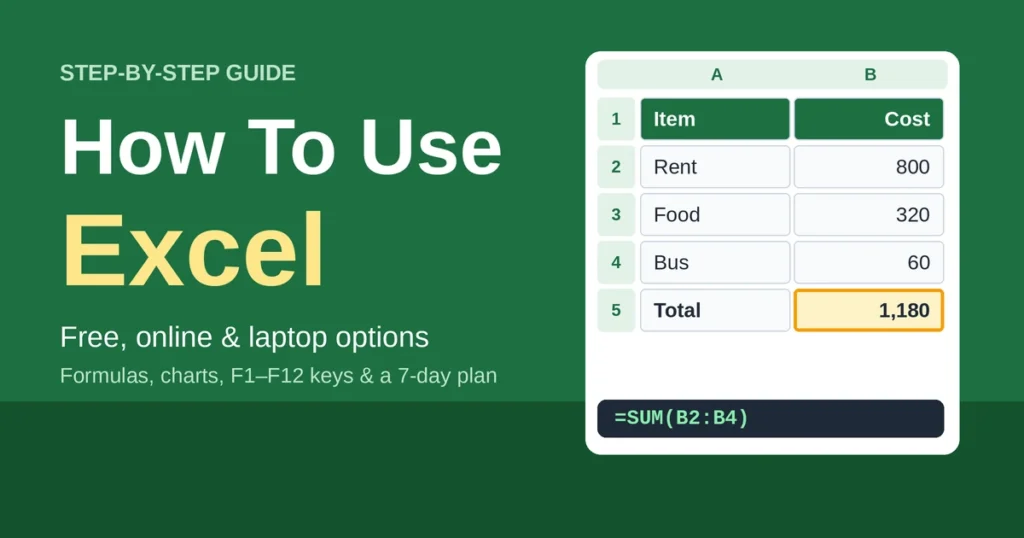
How to use Excel in a nutshell: open a blank workbook, type your data into the cells, start any calculation with an equals sign (=), then sort, chart and save the file. Excel is Microsoft’s spreadsheet program, and anyone with a Microsoft account can open a free version in a web browser.
New users often assume Excel is difficult, but the program itself is rarely the problem. The first screen is. It’s a big empty grid with no instructions, and a ribbon packed with buttons that nobody explains. This guide begins right there. You’ll find out what Excel actually does, where to get it for free (or on a laptop or phone), and what all those boxes and tabs are for. After that, it moves on to typing in data, writing your first formulas, sorting, making a chart, and the F1 to F12 keys that so many people search for. There’s also a seven-day practice plan and a list of mistakes beginners keep making.
What Is Microsoft Excel and What Is It Used For?
Think of a sheet of graph paper that does the maths for you. That’s the simplest way to describe Excel.
The page is made of rows and columns. Each box on it, called a cell, holds one thing: a number, a word, a date or a calculation. What makes it more than a table is that cells can use each other’s values. Change one figure and every total built on it updates straight away. You’d never get that from a calculator and a notebook.
Plenty of people use it for money matters like household budgets and invoices. Teachers keep grade books in it, and small shops track stock. Students build exam timetables, and anyone who needs a quick chart for a presentation can make one in a couple of minutes. The software is the same in every case. What changes is what people type into it. If a step here no longer matches your version of Excel, contact us and the guide will be updated.
Ways to Use Excel: Free, Online, Laptop and Mobile
Lots of people typing “how to use Excel” into Google don’t actually know which version they have, or whether they can get one without paying. So, the routes.
Excel for the Web (Free)
Anyone who just wants to try Excel can start in a browser. Go to the Microsoft 365 site, log in with a free Microsoft account (an Outlook address counts), and pick Excel from the app launcher. A blank workbook opens in the tab. Microsoft’s support pages explain that the web apps run in the browser, so there’s nothing to download or install. Files are saved to OneDrive, and the free account includes a bit of storage for that. itechguides
Is it the whole program? Not quite. Some add-ins and automation tools are limited or missing, and heavy workbooks are better handled by the desktop app. But for typing in numbers, trying a few formulas and drawing a chart, a beginner won’t notice what’s absent.
Excel on a Laptop or Computer
When most people say “Excel,” they mean the desktop app. It’s part of Microsoft 365 and runs on both Windows and Mac. It copes better with big files, works without the internet, and includes every feature, which starts to matter once workbooks get complicated.
Before paying for anything, though, check what’s already on the machine. Plenty of laptops come with Office, and schools and employers often hand it out. On Windows, type “Excel” into the Start menu search. On a Mac, open Launchpad and look there.
Excel 365 for Free Through School or Work
There’s a fair chance Excel has already been paid for by someone else. Lots of schools and workplaces run Microsoft 365 plans, and students and staff can often install the apps at no cost. The quickest way to find out is to ask the IT team. One short message, and it might save a subscription.
Excel on Mobile
Phone and tablet apps exist for iPhone and Android. They’re fine for checking a sheet, fixing a typo or entering a few numbers on the bus. Building a long formula on a phone keyboard, on the other hand, is nobody’s idea of fun. Most people treat mobile phones as a sidekick. Anyone want to create logo , flyer or Instagram post must read our guide how to use Canva first.
Quick Comparison
| Version | Cost | Best for | Main limitation |
| Excel for the web | Free with a Microsoft account | Learning, quick edits, sharing | Fewer advanced features, needs internet |
| Desktop app | Paid (or provided by school/work) | Heavy work, offline use | Needs installing |
| Mobile app | Free for basic use | Checking and light edits | Small screen |
Plans, prices and free limits shift now and then, so Microsoft’s official pages are the safest place to confirm the latest.
How Do I Start Using Excel?
Open the desktop app, or sign in to Excel for the web. The opening screen offers a few choices. Pick Blank workbook, since that’s what most tutorials assume.
Templates work too. Excel has ready-made ones for budgets, calendars and invoices, and poking around inside a finished one is a surprisingly good way to learn. Whichever path you take, save early. Ctrl+S, a sensible file name, and a folder you’ll actually find again.
Understanding the Excel Interface
At first glance it’s a lot. In practice, only a handful of things matter.
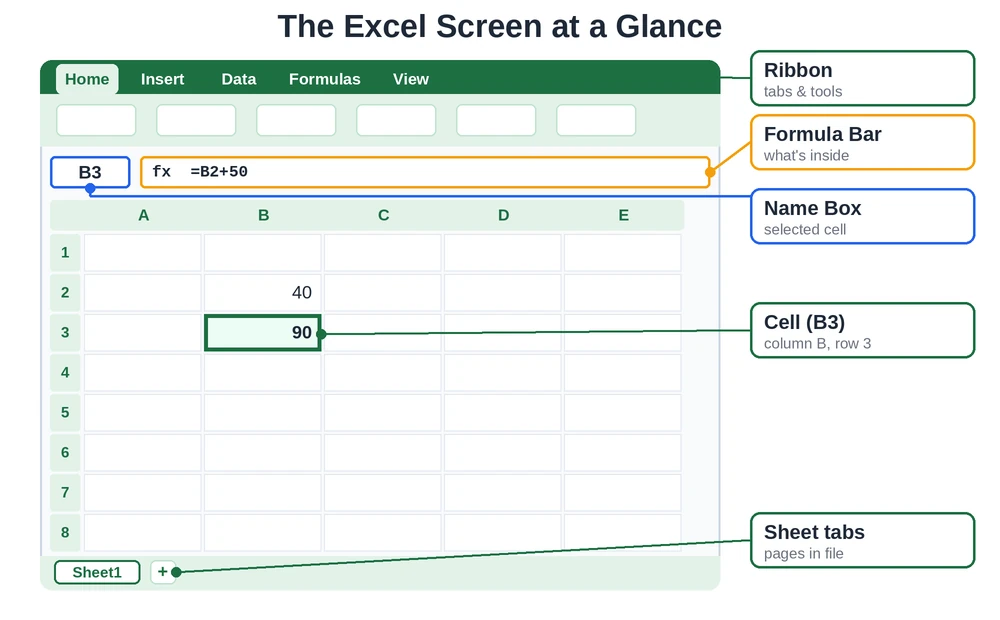
| Term | What it means |
| Workbook | The whole Excel file |
| Worksheet | One page (tab) inside the workbook |
| Cell | A single box, like B3 |
| Row | A horizontal line, numbered 1, 2, 3 |
| Column | A vertical line, lettered A, B, C |
| Ribbon | The toolbar of tabs across the top |
| Name Box | Shows which cell is selected |
| Formula Bar | Shows what’s inside the selected cell |
Workbook, Worksheet and Cell
Every cell has an address: column letter first, row number second. Column B meets row 3, and you get B3. It sounds minor, but formulas run entirely on these addresses, so it pays to get used to them. Sheet tabs line the bottom of the window, and the plus button adds another.
The Ribbon, Name Box and Formula Bar
The ribbon is the toolbar. Home covers fonts and number formats, Insert holds charts and tables, Data does sorting and filtering, and Formulas has the function library. The formula bar is easy to overlook, which is a shame. A cell can show 50 while the bar says =B2*B3, meaning 50 is an answer and not something somebody typed.
How To Use Excel Step by Step (Beginners)
Learning from a blank screen is miserable. Build something small instead. A monthly budget is a classic, and the steps below follow it.
Step 1: Enter Your Data
Click a cell and type. Enter drops you down a row, Tab moves you across. Put short headings along the top row, say “Item”, “Category” and “Amount”, then fill in the entries below. Keep one fact per cell. It makes sorting painless later.
Step 2: Edit and Select Cells
Typo? Double-click the cell, or press F2. To grab a block, drag across it, or click one corner and Shift-click the opposite one. Then there’s AutoFill, which feels like a small miracle: type “January”, drag the tiny square in the cell’s bottom-right corner, and Excel keeps going with February, March and onward.
Step 3: Format It So It’s Readable
Bold the header row. A pale fill color helps too. Double-click the line between two column letters to auto-fit the width. The Number group on the Home tab turns plain figures into currency or percentages, and borders mark off sections. None of this changes the numbers. It just makes the sheet kinder on the eyes.
Step 4: Turn the Data Into a Table
Click anywhere inside the data and press Ctrl+T. Excel wraps it in a formatted table with filter buttons, striped rows and ranges that grow as rows are added. For beginners, it’s one of the best shortcuts in the program.
Step 5: Save and Export
Ctrl+S, early and often. Excel files save as .xlsx by default. Need a read-only copy? Go to File > Save As or Export and choose PDF. And keep a backup of anything that matters.
How To Use Excel Formulas
This is where Excel stops being a pretty table and starts working.
What Is a Formula in Excel?
A formula tells Excel to calculate something. It always begins with an equals sign. Skip that sign and Excel assumes you typed plain text.
How Do I Write Formulas in Excel?
Start with the equals sign. Click any empty cell, type =, and then tell Excel what to work out. Say B2 holds 50 and B3 holds 30. Type =B2+B3, hit Enter, and the cell shows 80. Swap the plus for −, * or / and you get to subtract, multiply or divide.
The neat part comes later. Edit B2 and that answer fixes itself. Nothing to retype.
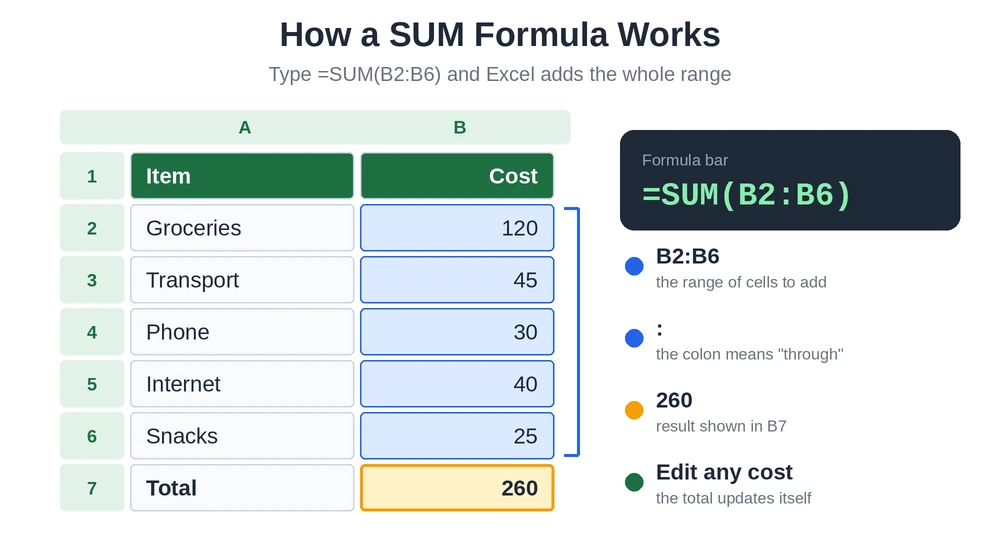
Adding a whole column is where a range helps. =SUM(B2:B6) takes everything from B2 to B6, and the colon just means “through”. Beats typing out five cells with plus signs between them. Can’t remember a function’s name? Type the first couple of letters and Excel suggests a few.
The 7 Basic Excel Formulas
| Formula | What it does | Example |
| Addition | Adds cells | =B2+B3 |
| Subtraction | Takes one from another | =B2-B3 |
| Multiplication | Multiplies values | =B2*B3 |
| Division | Divides values | =B2/B3 |
| SUM | Adds a range | =SUM(B2:B6) |
| AVERAGE | Finds the mean | =AVERAGE(B2:B6) |
| COUNT | Counts cells holding numbers | =COUNT(B2:B6) |
The 5 Basic Excel Functions
Functions are ready-made formulas with names. Five do most of the heavy lifting for beginners: SUM (the total), AVERAGE (the mean), MIN (the smallest value), MAX (the largest) and COUNT (how many numbers). Get comfortable with those and everyday jobs are mostly sorted. IF is a sensible next step, because it lets a cell choose between two answers.
Common Formula Errors
Errors look scary. They aren’t.
- #DIV/0! means a divide by zero or by an empty cell.
- #NAME? usually means a misspelled function.
- #REF! shows up when a referenced cell was deleted.
- #VALUE! means the wrong kind of data, like text in a maths formula.
Click the error cell and read the formula bar. Most of the time it’s a typo.
Sort, Filter and Chart Your Data
Sort and Filter
On the Data tab, Sort puts rows in order: A to Z, smallest to largest, newest first. Filter hides everything except what matches, like showing only the “Food” rows in a budget. Both behave best when the data has clear headers and no blank rows in the middle.
Remove Duplicates
Select the data, open the Data tab and click Remove Duplicates. Excel asks which columns to compare. Do this on a copy first. Deleted rows are easy to regret.
Create a Chart
Select the data you want to show, headings included, then go to Insert and try Recommended Charts. Column charts compare categories. Line charts show change over time. Pie charts suit a few slices of one whole. Keep it plain, really. A clear chart with a title beats a flashy one nobody can read.
Once sorting, filtering and charts feel natural, pivot tables are the next big thing to learn, since they summarise long lists in seconds.
Excel Function Keys (F1 to F12) and Handy Shortcuts
People search for these a lot, so here’s the whole row.
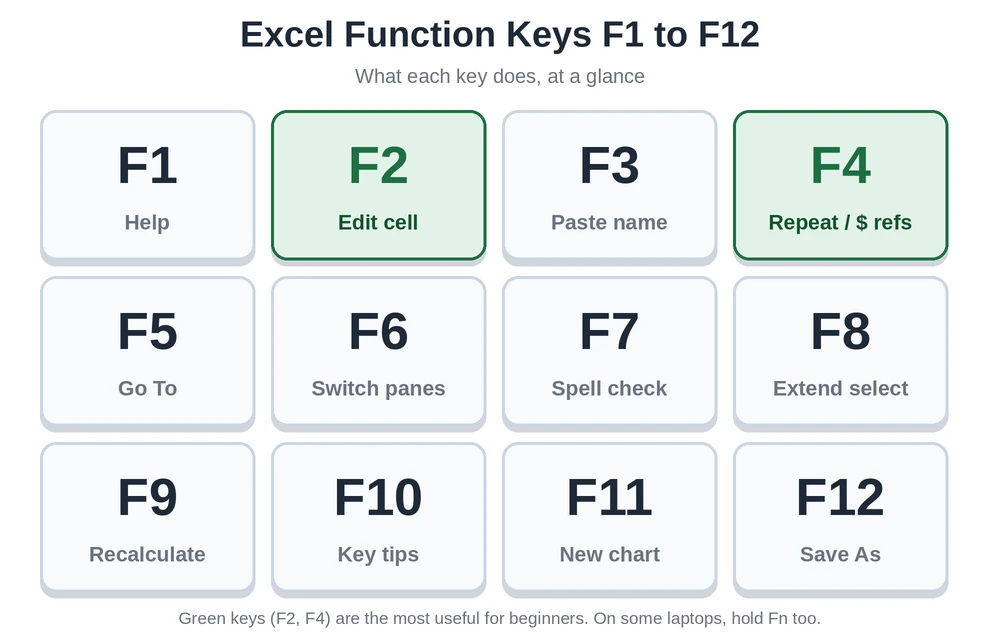
| Key | What it does in Excel |
| F1 | Opens Help |
| F2 | Edits the selected cell |
| F3 | Pastes a defined name into a formula |
| F4 | Repeats the last action, or toggles absolute references in a formula |
| F5 | Opens Go To |
| F6 | Moves between the worksheet, ribbon and other panes |
| F7 | Runs spell check |
| F8 | Turns on Extend Selection mode |
| F9 | Recalculates formulas |
| F10 | Shows key tips for the ribbon |
| F11 | Creates a chart on a new sheet |
| F12 | Opens Save As |
A heads-up for laptop owners: those keys often double as brightness and volume controls, so Fn may need to be held at the same time.
A few other shortcuts earn their keep early on. Ctrl+C, Ctrl+V and Ctrl+Z copy, paste and undo. Ctrl+S saves. Ctrl+Arrow jumps to the edge of the data. Alt+= drops in an AutoSum. Ctrl+T makes a table, and Ctrl+Shift+L flips filters on and off.
How To Learn Excel Easily (and in 7 Days)
Can it really be done in a week? The basics, yes. Mastery, no way. Seven focused days can take someone from “what’s a cell?” to a tidy budget with formulas and a chart. Pivot tables, lookups and automation need more time.
| Day | Focus |
| 1 | Interface, entering data, saving |
| 2 | Formatting and AutoFill |
| 3 | Basic formulas (+, −, *, /) |
| 4 | SUM, AVERAGE, MIN, MAX, COUNT |
| 5 | Sorting, filtering, tables |
| 6 | Charts |
| 7 | Build one small project end to end |
Short daily sessions of 20 to 40 minutes tend to beat one exhausting weekend. And use real stuff: your own spending, a class timetable, a gym log. Practice data you care about sticks far better than made-up numbers.
Excel for Students
For students, a few uses pay off most: grade trackers, study timetables, lab data with averages, and charts for assignments. Many schools hand out Microsoft 365 for free, so check before paying. Free beginner PDFs and Microsoft’s own help pages work well for revision, provided they match the version being used.
Common Beginner Mistakes (and Easy Fixes)
- Forgetting the equals sign. No =, no formula. It’s just text.
- Typing numbers as text. A number hugging the left side of its cell, refusing to add up? Check the format.
- Merging cells everywhere. Looks tidy, breaks sorting and filtering. “Center Across Selection” is safer.
- Leaving blank rows inside data. Tables and sorting can stop at the gap.
- Not saving. Ctrl+S. Again.
- Slow files. Close other workbooks, delete unused rows and heavy formatting. Sometimes a restart does it.
Frequently Asked Questions
What is F1, F2, F3, F4, F5, F6, F7, F8, F9, F10, F11, F12 in Excel?
Quick rundown. F1 pulls up Help, nothing fancy. F2 drops the cursor into the cell so it can be edited, and it’s the one beginners use most. F3 pastes a named range, which is useless until someone has actually created names. F4 does two jobs: it repeats the last action, and inside a formula it adds those dollar signs (absolute references). F5 opens Go To. F6 jumps between panes. F7 runs the spell checker. F8 is an Extend Selection, and honestly almost nobody touches it. F9 recalculates. F10 shows ribbon key tips. F11 builds a chart on its own sheet. F12 is Save As.
How can I learn Excel easily?
Don’t try to learn “Excel.” Learn one job. Say, tracking a month of spending. That needs typing in data, one SUM, maybe a chart, and that’s it. Fifteen minutes most days beats a three-hour binge on Sunday. The usual way people stall is bouncing between features and finishing nothing.
What are the 7 basic Excel formulas?
Add, subtract, multiply, divide. Those are four. Then SUM, AVERAGE and COUNT. Seven total, and between them they cover a shopping bill, a gym log or a class average without much fuss.
What are the 5 basic functions of Excel?
SUM, AVERAGE, MIN, MAX, COUNT. Total, mean, lowest, highest, and a count of the numbers in a range. Learn those five and most everyday sheets just work.
What is the formula in Excel?
A calculation sitting in a cell. It always starts with =, like =B2+B3, and it can mix numbers, cell addresses, operators and functions. The useful bit is that it recalculates itself the moment one of those cells changes. Nobody has to retype a thing.
How do I use Excel step by step?
Blank workbook first. Headings go in row 1, data goes underneath. Tidy the formatting so it’s readable, add a formula, then sort, filter or chart whatever needs it. Save with Ctrl+S under a name that’ll still make sense next month.
How do I start Excel?
On Windows, search “Excel” in the Start menu. On a Mac, check Launchpad. Nothing installed? The web version only needs a Microsoft account. Either way, the opening screen offers a Blank workbook, with templates right beside it.
How do I write a formulas in Excel?
Click a cell. Type =. Add cell addresses and an operator, or a function such as =SUM(B2:B6), then hit Enter. Got an error? Click the cell and read the formula bar, because it’s almost always a typo.
Can I learn Excel in 7 days?
The basics, sure. Data entry, simple formulas, sorting, filtering, one chart. Pivot tables, lookups and automation? No, those take longer. A week gets someone started, and that’s all it does.
Final Thoughts
Excel feels hard until a few ideas click, and they’re not many. Cells hold data. Formulas start with =. Sorting, tables and charts handle a lot of the grunt work. Pick a small project, practise a bit every day, and add one skill at a time. That’s really the whole method.
Microsoft keeps changing menus, free plans and features, so for the latest details on any version, its official support pages are the place to check.
Sources consulted: Microsoft’s Excel for the web and support pages, Business Insider, Unito, Tech Advisor and itech guides. All content was written independently in original wording.
For more free step-by-step tool guides like this one, visit YourBrand.