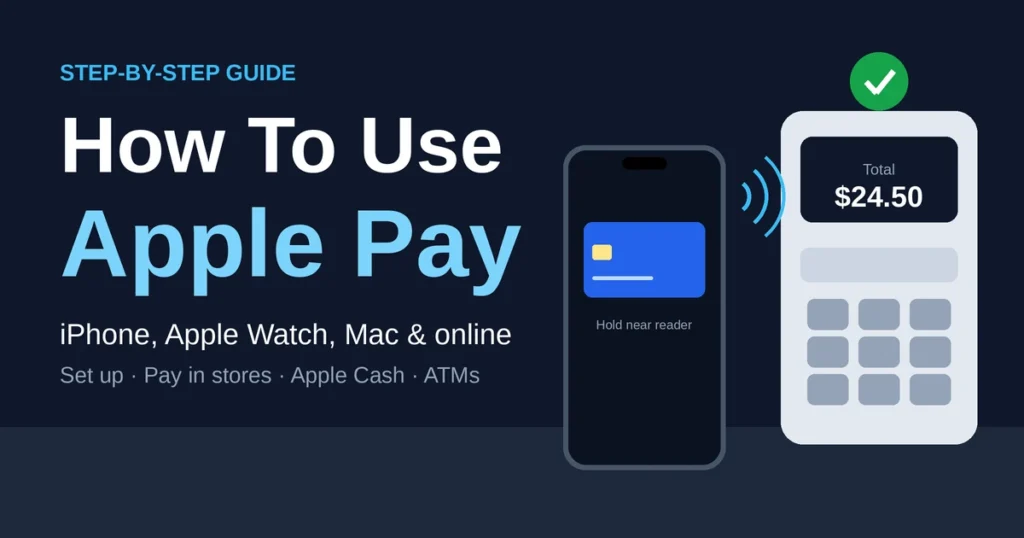
How to use Apple Pay in a nutshell: add a debit or credit card to the Wallet app, then double-click the side button on an iPhone with Face ID (or use Touch ID), hold the phone near the contactless reader, and wait for the checkmark. The same card also works in apps, on websites, and on an Apple Watch, iPad or Mac.
Tapping a phone at the register feels like a small trick the first time. By the third time it’s just how paying works. Apple Pay is built into every recent iPhone, so there’s nothing to download, and most US stores already have the readers. This guide covers the setup, paying in stores and online, using it on a Watch, iPad or Mac, sending money with Apple Cash, and what to do at an ATM. There’s also a safety section and a quick fix list for the times a payment won’t go through.
Quick Takeaways
- Cards live in the Wallet app, and Apple Pay is the payment feature that uses them.
- Face ID iPhones pay with a double-click of the side button.
- Apple Cash, the send-money feature, is for US residents who are 18 or older.
- Amazon’s website doesn’t accept Apple Pay at checkout.
- Contactless ATM withdrawals work only at participating banks.
What Is Apple Pay? Apple Pay vs Apple Wallet
Apple Pay is a way to pay with a phone or watch instead of a plastic card. Add a card once, and the device handles the rest at stores, in apps and on websites.
People often mix it up with Apple Wallet, and that’s understandable. Wallet is the app. It holds cards, boarding passes, tickets, gift cards and even keys. Apple Pay is the payment feature running inside it. So when someone asks “what’s the difference between Apple Pay and Apple Wallet?”, the short answer is that one is the container and the other is the service.
What You Need and Where Apple Pay Works in the US
Apple’s setup page says Apple Pay works by adding a debit or credit card to the Wallet app on an iPhone, Apple Watch or other compatible device. Not much else is required.
| What’s needed | Why it matters |
| A compatible iPhone, Apple Watch, iPad or Mac | Each one can hold cards and approve payments |
| An Apple Account | Syncs Wallet across devices |
| Face ID, Touch ID or a passcode | Apple requires one of them to authorize payments |
| A card from a participating bank | Not every bank or card type is supported |
Where You Can Use It
Look for the contactless symbol or the Apple Pay logo at the terminal. Grocery stores, pharmacies, gas stations, coffee shops and fast food chains tend to have them. So do a growing number of restaurants and online shops. If a checkout screen shows a “Buy with Apple Pay” or plain “Apple Pay” button, the site accepts it.
One thing to do early: check that a specific card is supported. Banks and credit unions decide that, not Apple, and most list it on their own website or in their app.
How To Use Apple Pay for the First Time: Set It Up on iPhone
A first-time setup takes a couple of minutes. It works the same way on the iPhone 17 and on older models that support it.
Add a Card in the Wallet App
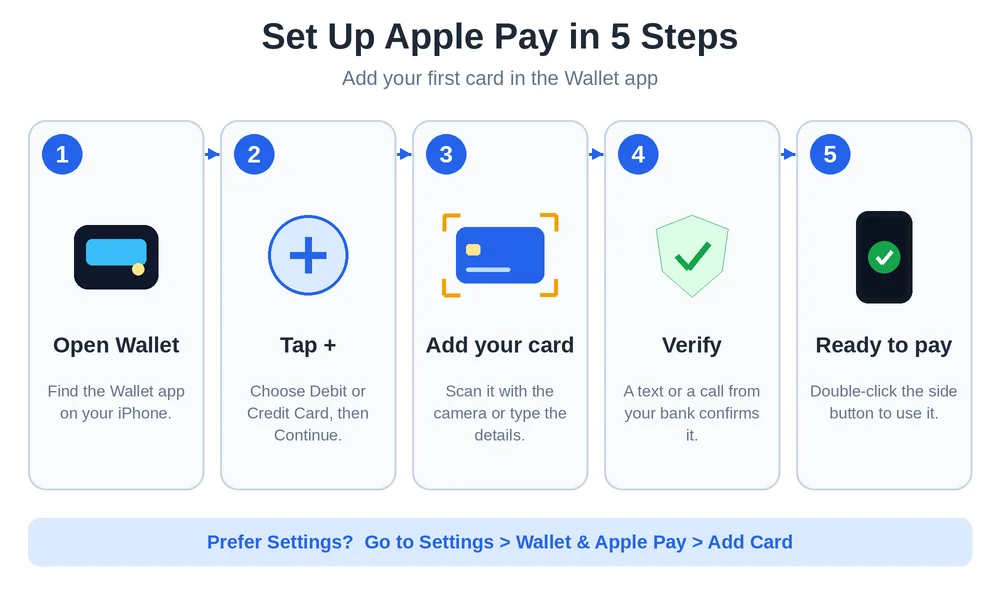
- Open the Wallet app.
- Tap the + button.
- Choose Debit or Credit Card, then tap Continue.
- Hold the card in the camera frame, or enter the details by hand.
- Type the security code and agree to the terms.
- Pick a verification method, such as a text message or a call from the bank.
- Finish verifying, and the card is ready.
If the card has the contactless symbol, some banks let it be added by holding it close to the top of the iPhone. Banks may ask for extra information or an app download before approving the card.
Add a Card From Settings
Prefer Settings? Go to Settings > Wallet & Apple Pay and tap Add Card. The steps after that are the same. This route is handy for adding the same card on an iPad.
A quick tip before moving on. Set a default card from that same Wallet & Apple Pay screen. It’s the one that will pop up first at the reader.
How To Use Apple Pay in a Store
Paying at a register comes down to three moves: wake the card, authenticate, hold near the reader.
Face ID iPhones
Double-click the side button. The default card shows up. Look at the screen so Face ID can confirm it’s the owner, then hold the top of the iPhone within an inch or two of the reader. A checkmark and a soft buzz mean it worked. Tapping the card at the bottom of the screen lets users swap to a different one before paying.
Touch ID iPhones
Rest a finger on the Home button without pressing it, and hold the phone near the reader. No double-click needed. Touch ID confirms the payment.
Tips for Restaurants and Gas Stations
At restaurants, the tip usually gets added on the terminal or the handheld device before tapping. At gas pumps, a contactless symbol on the pump means Apple Pay is accepted. If a reader doesn’t respond, a short pause and a steadier hold often fix it. Moving the phone a little around the reader helps, since the NFC spot isn’t always where people expect.
Express Transit
Some US transit systems accept Apple Pay at the turnstile without unlocking the phone. It’s an optional setup, since the card has to be marked as the Express Transit card in Wallet. Which cities and cards work changes over time, so a quick check on the local transit agency’s website beats guessing.
How To Use Apple Pay Online and in Apps
Online checkout is where Apple Pay saves the most typing. No card number, no billing address, no shipping form to fill out.
In Safari and in Apps
Look for the Apple Pay button near the other payment choices. Tap it, check the shipping and billing details on the payment sheet, then confirm with Face ID, Touch ID or the passcode. That’s all. Donation pages and food delivery apps use the same button.
Does Apple Pay Work on Amazon?
Not at Amazon’s regular checkout. Most sources agree that Amazon’s website and app don’t list Apple Pay as a payment method, though the Apple Card works there as a regular credit card. Some third-party sellers may offer their own checkout, and a few shoppers buy an Amazon gift card with Apple Pay elsewhere and redeem it. In person, Whole Foods and Amazon Go stores do accept Apple Pay. Since policies can change, it’s worth checking Amazon’s payment page before relying on this.
How To Use Apple Pay on Apple Watch, iPad and Mac
Apple Pay isn’t limited to the iPhone.
Apple Watch
Double-press the side button on the watch, then hold the display near the reader. The watch needs a passcode, and it must be on the wrist and unlocked. For anyone who doesn’t want to dig out a phone while carrying groceries or running errands, it’s a practical option.
iPad
An iPad works for in-app and Safari payments. Add a card under Settings > Wallet & Apple Pay, then pick Apple Pay at checkout and confirm with Face ID or Touch ID. iPads don’t tap at store terminals.
Mac
Macs with Touch ID can approve payments with a fingertip. For Macs without it, there’s a workaround. Apple notes that a purchase can be completed using a compatible iPhone or Apple Watch, after turning on Allow Payments on Mac in the iPhone’s Wallet & Apple Pay settings. The Mac then shows a prompt, and the phone or watch confirms it. apple
How To Use Apple Pay To Send Money With Apple Cash
People searching for how to use Apple Pay to send money are usually after Apple Cash. It’s a separate feature that sits inside Wallet.
Who Can Use Apple Cash
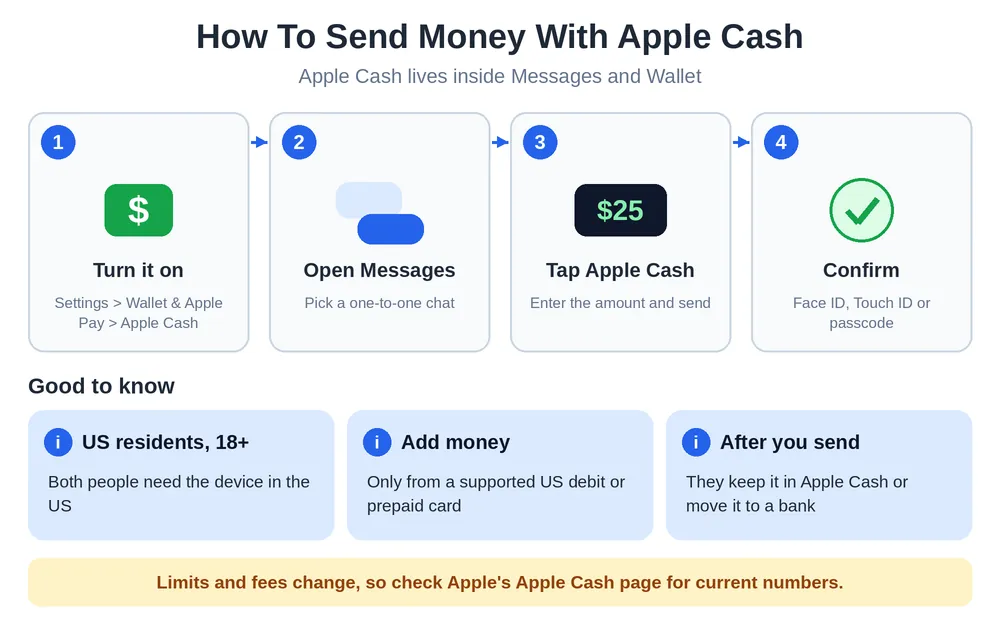
It’s a US-only service. Apple states that senders and receivers must be residents of the United States with their device in the United States, and must be 18 or older. Younger users can have it through an organizer’s Apple Cash Family account. apple
Set It Up and Send Money
- Go to Settings > Wallet & Apple Pay and turn on Apple Cash.
- Open a one-to-one conversation in Messages.
- Tap the Apple Cash button, enter an amount, and send.
- Confirm with Face ID, Touch ID or the passcode.
The other person gets a notification and can keep the money in Apple Cash or move it to a bank account. Requests work the same way in reverse. Digital Trends has a longer walkthrough of Apple Cash for anyone who wants screenshots.
Adding Money, Limits and Fees
Apple says that money can be added to a balance only from a supported US debit card or prepaid card already set up in Wallet, and that gift cards don’t count, even if they’re in Wallet. Credit cards can’t be used to add funds, either. apple
Apple also sets limits. After identity verification, sends and receives can reach a higher cap per message and per seven days. Family and Tap to Cash accounts sit lower, at around $2,000 for seven days. Limits and fees change, so Apple’s Apple Cash page has the current numbers. Moving money to a bank is usually slower than moving it to an eligible debit card, which may carry a small fee for instant delivery.
Apple Cash vs Zelle, Venmo and Cash App
| Option | How it’s used | Good to know |
| Apple Cash | Inside Messages and Wallet | Needs an iPhone, US residents only |
| Zelle | Through a bank’s app | Moves money bank to bank |
| Venmo | Social app with its own balance | Works on iPhone and Android |
| Cash App | App with a balance and card | Works on iPhone and Android |
Apple Cash makes the most sense when both people already use iPhones. PayPal is another popular option, especially for online payments between people. Our guide on how to use PayPal covers the basics.
How To Use Apple Pay Without a Card or Without a Debit Card
Strictly speaking, Apple Pay needs something to pay with. But it doesn’t always have to be a bank-issued plastic card.
- An Apple Cash balance: works for purchases at Apple Pay merchants. The balance comes from received money, Apple Card Daily Cash, or a supported debit or prepaid card.
- An Apple Card: Apple’s own credit card, which lives in Wallet.
- A prepaid card: many supported prepaid cards can be added the same way as a debit card.
For anyone asking how to add money to Apple Pay without a debit card, the answer is narrower. A supported prepaid card works for loading Apple Cash, and so do received funds. Credit cards and gift cards don’t.

Can You Use Apple Pay at an ATM or Deposit Cash?
At the right ATM, yes for withdrawals. Contactless ATMs at participating banks such as Chase, Bank of America and Wells Fargo let customers tap an iPhone or Apple Watch, choose the debit card, and take cash out. A contactless symbol on the ATM is the sign to look for, and a PIN may be required.
Deposits are a different story. One report on the feature notes that it only allows withdrawals, balance checks and transfers, not depositing cash or checks. Putting cash straight into Apple Pay isn’t a listed option either, since Apple Pay isn’t a bank account. A bank branch, a deposit-enabled ATM, or an Apple Cash transfer from a debit card are the usual routes. macworld
Is Apple Pay Safer Than Using a Card?
In most everyday situations, yes. When a payment goes through, the store doesn’t get the real card number, so a breach at a retailer doesn’t expose it. Payments also need Face ID, Touch ID or a passcode, which a lost physical card doesn’t. And a lost iPhone can be locked or wiped remotely.
No payment method is risk-free, though. A weak passcode, an unlocked phone handed to someone, or a phishing text pretending to be a bank can still cause trouble. Keeping iOS updated and not sharing verification codes handles most of that.
Apple Pay Not Working? Quick Fixes
When a payment fails, the cause is usually small.
- Check the card. Open Wallet and make sure it shows as active and verified.
- Try another card. If one fails and another works, the issue is with that card or its bank.
- Hold the phone steadier. Keep the top of the iPhone close to the reader for a second or two.
- Confirm Face ID or Touch ID. A dirty sensor or a blocked camera can stop authentication.
- Update iOS. Old software can cause strange errors.
- Restart the phone. It clears a surprising number of glitches.
- Call the card issuer. Some banks flag Apple Pay transactions for review.
If everything above checks out and it still fails, Apple Support is the next stop.
Frequently Asked Questions
What’s the difference between Apple Pay and Apple Wallet?
Wallet is the app that stores cards, passes, tickets and keys. Apple Pay is the payment feature that uses the cards stored there. In short, Wallet holds things, and Apple Pay spends them.
How do I pay someone with my Apple Pay?
Use Apple Cash. Open a one-to-one chat in Messages, tap the Apple Cash button, enter an amount and confirm. Both people need to be US residents, 18 or older, with Apple Cash set up.
Can I use Apple Pay without my Wallet?
Not really. Cards are managed in Wallet or in Settings under Wallet & Apple Pay, and payments draw on what’s stored there. Shortcuts like the side-button double-click open the Wallet payment screen.
How to pay by Apple Pay without a card?
An Apple Cash balance can pay anywhere Apple Pay is accepted. Without a card or a balance, there’s nothing for Apple Pay to spend, so a supported debit, credit or prepaid card is the starting point.
Can I use Apple Pay at an ATM?
Yes, at contactless ATMs from participating banks like Chase, Bank of America and Wells Fargo. Look for the contactless symbol, tap the phone, and choose the debit card. Not every ATM supports it.
Can I deposit cash directly into Apple Pay?
No. Apple Pay isn’t a bank account, and Apple Cash is funded by a supported US debit or prepaid card, money received from others, or Apple Card Daily Cash. Cash deposits go through a bank.
What cards work with Apple Pay?
Debit, credit and prepaid cards from participating US banks and issuers. Support depends on the bank, so the bank’s website or app is the quickest way to check a specific card.
How can I add money to Apple Pay without a debit card?
A supported prepaid card can add money to Apple Cash, and received payments or Apple Card Daily Cash also grow the balance. Credit cards and gift cards can’t be used.
Is Apple Pay safer than using a card?
Generally, yes. Merchants don’t receive the real card number, and each payment needs a Face ID, Touch ID or a passcode. It isn’t risk-free, so keep the phone locked and updated.
Final Thoughts
Learning how to use Apple Pay takes about as long as adding a card. After that, the habits are simple: double-click, glance, tap. Most of the confusion comes from a few side questions, such as what Apple Cash can do, whether ATMs work and why Amazon says no. Now those are covered.
Features, limits and supported banks change, so Apple’s own support pages are the best place to confirm the latest details for a specific card or device. Curious who’s behind these guides? Read more about us.
For more free step-by-step tech guides like this one, visit The How To Use.
Sources consulted: Apple Support (Set up Apple Pay, Apple Cash pages), Digital Trends, Macworld, Cult of Mac and Mactrast. All content was written independently in original wording.