
Keyboard shortcuts on a Mac are key combinations, usually a modifier key like Command held down while you tap another key, and they trigger an action instantly so you don’t have to dig through menus or reach for the trackpad every single time. A few of these are probably muscle memory already without you even thinking about it: Command+C to copy, Command+V to paste, Command+Z to undo, Command+Space to open Spotlight, and Command+Tab to jump between open apps. Learning how to use keyboard shortcuts on a Mac properly really comes down to three things. Know what the modifier symbols actually mean, keep a short list of the genuinely useful combos on hand, and build your own for anything that’s missing.
This guide covers the basic motion first, then a cheat sheet worth screenshotting, shutdown and forward-delete tricks, custom shortcuts, window management, Excel, common mistakes, and quick answers to the shortcut questions people search for most.
One quick note before diving in: everything here is written for recent versions of macOS. Menu names shift a little between versions, so if System Settings looks slightly different on your Mac, the exact path might wander a step or two from what’s described below.
This guide is part of our growing library of step-by-step how-tos — you can browse the rest of them from our project.
How to Use a Keyboard Shortcut on a Mac: Step-by-Step
Every Mac shortcut works the same way underneath, so this part only needs learning once, and then it just sort of sticks.
Step 1: Find the modifier key.
Most shortcuts get written with the modifier first — Command, Shift, Option, or Control — and sometimes two or three end up stacked together.
Step 2: Press and hold the modifier before anything else.
Letting go too early is honestly the number one reason a shortcut doesn’t fire.
Step 3: Tap the second key while the modifier’s still held down.
A quick tap does the job. No need to hold that second key down at all.
Step 4: Release both keys.
The action happens the moment the second key gets pressed, so there’s really nothing left to do after that.
The short version, for anyone skimming:
Hold the modifier, tap the other key, let go. Command+C means holding Command and tapping C, and that’s genuinely the whole pattern.
Essential Mac Keyboard Shortcuts (Cheat-Sheet Table)
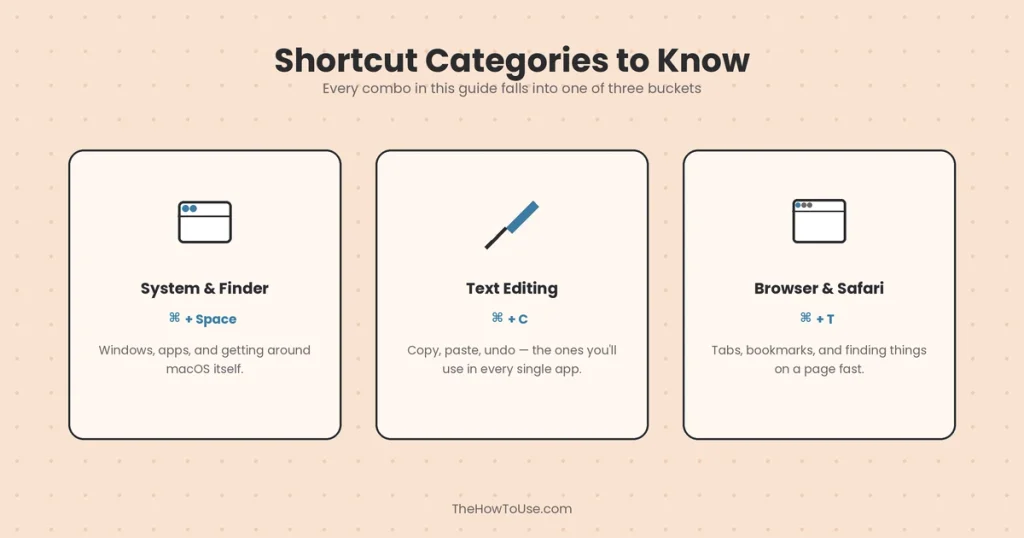
Nobody needs fifty shortcuts memorized on day one, and honestly, most people never get there anyway. The set below covers what actually gets used day to day, laid out so it’s easy to screenshot or copy straight into a notes app for quick reference.
System & Finder Shortcuts
| Shortcut | What It Does |
| Command + Space | Opens Spotlight search |
| Command + Tab | Switches between open apps |
| Command + Q | Quits the current app |
| Command + W | Closes the current window |
| Command + M | Minimizes the current window |
| Command + Option + Esc | Force-quits a frozen app |
| Command + Shift + 3 | Screenshot of the whole screen |
| Command + Shift + 4 | Screenshot of a selected area |
Text Editing Shortcuts
| Shortcut | What It Does |
| Command + C | Copy |
| Command + V | Paste |
| Command + X | Cut |
| Command + Z | Undo |
| Command + Shift + Z | Redo |
| Command + A | Select all |
| Command + S | Save |
| Command + P |
Command+B, Command+I, and Command+U also work for bold, italic, and underline in most writing apps, in case those weren’t already obvious.
Browser & Safari Shortcuts
| Shortcut | What It Does |
| Command + T | Opens a new tab |
| Command + Shift + T | Reopens the last tab you closed |
| Command + W | Closes the current tab |
| Command + F | Finds a word or phrase on the page |
| Command + L | Jumps to the address bar |
| Command + D | Bookmarks the page |
| Command + R | Reloads the page |
| Command + [ or ] | Goes back or forward |
Window & Multitasking Shortcuts
Worth its own quick table, since juggling several windows is where a Mac genuinely starts to feel faster once these become second nature.
| Shortcut | What It Does |
| Control + Up Arrow | Opens Mission Control, showing every open window at once |
| Control + Left/Right Arrow | Switches between full-screen Spaces or desktops |
| Fn + F (some models) | Toggles the active window in and out of full screen |
| Command + ` | Cycles between windows within the same app |
That last one trips people up constantly, since it looks like a typo the first time someone sees it written down. It’s the backtick key, usually sitting just above Tab, and it’s genuinely one of the more underused shortcuts on this whole list.
How to Shut Down a MacBook Using the Keyboard
There’s no single “shut down” key on a Mac keyboard, but a few combinations get you there, including on a MacBook Air, where the Touch ID button doubles as the power button.
Press Control + Power (or Control + Touch ID) and a dialog pops up with restart, sleep, and shut down options. From there, press Return to shut down, R to restart, S to sleep, or Esc to back out entirely. For a faster route, Control + Option + Command + Power quits every open app and then shuts the Mac down on its own, and it’ll still ask about any unsaved documents along the way.
One warning worth taking seriously: Control + Command + Power looks nearly identical but force-restarts the Mac instead, with zero chance to save anything open. Save that one specifically for when things are frozen and nothing else responds. And if the whole machine’s genuinely unresponsive, holding the power button down for about ten seconds is the last resort.
Understanding Mac Modifier Key Symbols
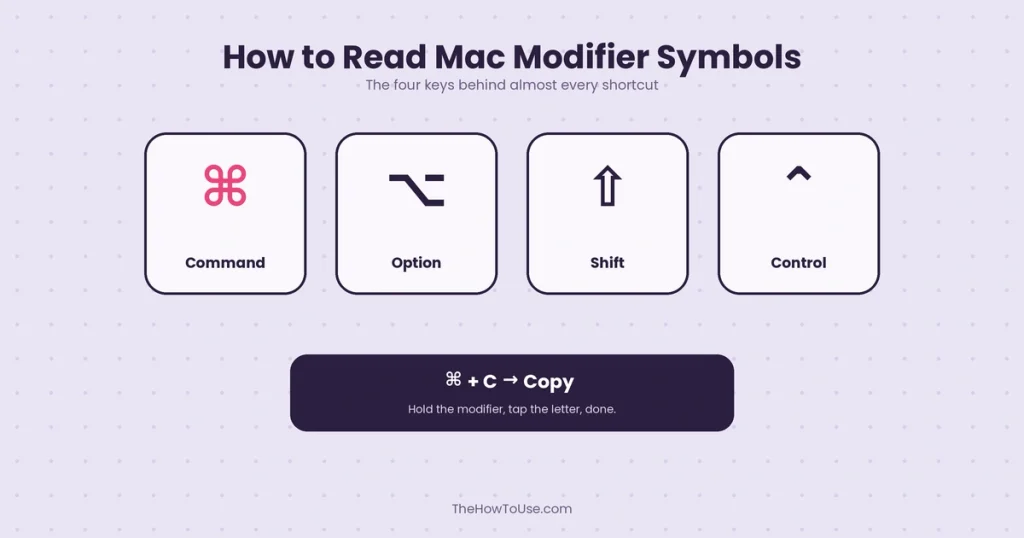
Mac shortcuts get written in symbols instead of plain words, and that trips up plenty of people coming over from Windows, where everything’s spelled out as “Ctrl” or “Alt” instead. Here are some popular modifier keys:
- ⌘ Command is the workhorse, sitting right next to the spacebar and involved in most shortcuts you’ll ever use.
- ⌥ Option handles secondary functions and special characters, and shows up labeled “Alt” on some keyboards instead.
- ⇧ Shift does what it does everywhere else — capitals, and extra force layered onto another shortcut.
- ⌃ Control matters less here than it does on Windows, but it still powers a small set of genuinely handy text-navigation tricks.
- ⇥ Tab, ⎋ Esc, ⌫ Delete, and ⌦ Forward Delete all show up written as symbols in menus even when the physical key just has a word printed on it.
- fn is the small key tucked in the corner that unlocks a second layer of actions across the F1 through F12 row.
The biggest thing to remember through all of this: a Mac uses Command for nearly everything Windows uses Ctrl for. Most of that old muscle memory genuinely carries straight over, you’re really just swapping which finger does the reaching.
How to Delete Forward on a MacBook (No Forward-Delete Key)
This one catches a lot of MacBook Air owners moving over from a full-size Windows keyboard, and it’s a fair thing to be confused by. The Delete key on a Mac only deletes backward, toward the left, exactly like Backspace does everywhere else.
To delete forward instead — clearing the character ahead of the cursor rather than behind it — hold Fn and press Delete together. That’s the closest thing to a dedicated forward-delete key on a compact MacBook keyboard that doesn’t have one printed anywhere. Control + D does the same job inside most text fields, as a backup worth knowing. A couple of related tricks are worth picking up too, while we’re at it: Option + Delete wipes out the entire previous word in one go, and Command + Delete clears everything back to the start of the line.
How to Create Custom Keyboard Shortcuts on a Mac
Apple’s default list is fixed, sure, but almost any menu command in almost any app can get its own custom shortcut assigned to it. That’s genuinely something a Mac does better than most people ever realize.
Open System Settings, go to Keyboard, click Keyboard Shortcuts, and choose App Shortcuts from the sidebar. Hit the plus button, pick the app (or “All Applications” for something universal across the whole system), and type the exact menu command name in. It has to match the wording in the actual menu letter for letter, ellipsis included if there is one. Then press whatever key combination feels natural, and it works immediately, no restart required. It’s genuinely perfect for that one command buried three submenus deep that somehow gets used constantly anyway.
One thing that trips people up here: Apple’s Shortcuts app is a completely separate thing from all of this. It builds automated workflows instead, though you can assign a keyboard shortcut to any workflow you build there too, if that’s useful.
Keyboard Shortcuts in Excel and Other Apps on Mac
Excel on a Mac keeps most of its Windows shortcuts intact and just swaps in Command as the base modifier, with a handful of exceptions worth calling out separately.
Command + 1 opens Format Cells. Command + D fills down and Command + R fills right, which catches people off guard the first time since those letters don’t map the way you’d guess. Control + Command + V opens Paste Special. Control + U drops you into edit mode on the active cell. For hopping between sheet tabs, Control + Page Down (or Option + Right Arrow) moves forward, and on a MacBook without a dedicated Page Down key, you’d add Fn in to get there. Function-key shortcuts often need Fn held down as well, unless that behavior’s been flipped in System Settings already.
Apps like Pages, Word, and Numbers all follow the same Command-based pattern for formatting, so honestly, the cheat sheet from earlier carries over to almost everywhere else too.
Common Mistakes When Using Mac Shortcuts
A handful of habits trip up even genuinely experienced Mac users, not just people brand new to the platform.
Reaching for Ctrl out of old Windows habits is the classic one, and it happens to almost everyone at some point. It usually does nothing at all, or occasionally something completely unrelated, since Ctrl plays a much smaller role here than it does elsewhere. Letting go of the modifier too early cancels the shortcut before it even really starts.
Custom shortcuts fail more often than expected when the menu name doesn’t match exactly, and even one missing ellipsis can stop the whole thing cold. Shortcut conflicts happen too, when a new custom combo collides with something that already existed, and one of the two quietly stops working without any real explanation. And a few apps just do their own thing entirely, so a combo that works perfectly in one program might not exist at all in another, which is worth remembering before assuming something’s broken.
Watch: How to Use Keyboard Shortcuts on a Mac (Video Guide)
Lists of key combos only really stick for some people. Plenty of others just need to watch someone’s fingers move once and it clicks immediately. Apple’s own support pages include a short video walkthrough covering the basics, and independent Mac channels like MacMost on YouTube run through the same fundamentals with a bit more personality thrown in. Either one pairs well alongside the tables above.
Frequently Asked Questions
Does a Mac use Ctrl or Command for shortcuts?
Command, for almost everything you’d ever need. Control still exists, mostly for right-click menus and a handful of text-navigation tricks, but it’s nowhere near as central as Ctrl is on Windows.
What are the 20 keyboard shortcuts everyone should know on a Mac?
The cheat-sheet tables above cover more than 24 of them already. If someone only learns five, make it Command+C, Command+V, Command+Z, Command+Space, and Command+Tab — those five alone cover most everyday tasks.
What are the 50 keyboard shortcuts on a Mac?
Apple’s full list runs well past fifty, honestly, but most of those never get touched in practice. The tables above, plus the Excel and text-editing tricks, cover what actually comes up in real day-to-day use
What is Ctrl+K on Mac?
Pressing Control+K in a text field deletes everything from the cursor to the end of the line. If the Windows-style habit is what brought someone here, Command+K is the one that inserts a hyperlink in Pages, Mail, Notes, and Word.
What is Ctrl+L on Mac?
Control+L scrolls the current line to the center of the view in text fields. Command+L is the one that jumps straight to a browser’s address bar instead.
What is Ctrl+T on Mac?
Control+T swaps the two characters sitting on either side of the cursor, which is genuinely handy for fixing a quick typo. For opening a new tab, that’s Command+T instead.
What is Ctrl+F on Mac?
Control+F moves the cursor forward one character at a time. Command+F is the actual shortcut for Find.
What is Ctrl+Shift+T used for on Mac?
It doesn’t really have a standard job built in on a Mac. The one most people actually want is Command+Shift+T, which reopens the last closed tab in Safari, Chrome, and Firefox alike.
How do I use Ctrl+D on a Mac?
Control+D deletes the character sitting to the right of the cursor. Command+D bookmarks a page in most browsers, and inside Finder it duplicates whatever file’s currently selected.
What is Ctrl+A to Z on a Mac?
Basically the alphabet of shortcuts. With Command held down: A selects all, B bolds, C copies, D bookmarks or duplicates, F finds, N opens a new window, O opens a file, P prints, Q quits, S saves, T opens a new tab, V pastes, W closes the window, X cuts, and Z undoes. Control+A on its own just jumps the cursor to the start of a line.
How do I shut down a MacBook Air with the keyboard?
Press Control + Touch ID (the power button), then hit Return once the dialog appears. The full breakdown with all the variations sits up in the shutdown section above.
Why do some shortcuts stop working in certain apps?
Usually because that specific app either doesn’t support the shortcut at all, or it’s been remapped to do something else entirely inside that program. It’s worth checking the app’s own menu bar first, since the shortcut assigned to a command is almost always shown right next to it there.
Is there a printable PDF or cheat sheet?
Not yet on this site, but the tables above are built specifically so they’re easy to screenshot or copy straight into a notes app for quick reference later.
Still stuck on a specific shortcut?
Not every edge case fits neatly into a guide like this one. If something’s not working the way it should, reach out through our Contact Us page and we’ll help track it down.
Key Takeaways
Every Mac shortcut really boils down to the same basic move: hold the modifier, tap the other key, let go. Command handles the heavy lifting that Ctrl does on Windows, Option and Shift extend what any given shortcut can do, and Control quietly powers a smaller set of text-editing tricks most people never even notice.
Once that core habit sets in, the smaller extras genuinely start paying off — Fn+Delete for forward delete, custom app shortcuts for menu commands buried three layers deep, Mission Control for wrangling a dozen open windows at once, and a few Excel-specific combos that don’t quite follow the usual pattern. None of it takes long to pick up, and all of it adds up to a Mac that feels noticeably quicker to use.